
The SMB (Server Message Block) protocol is a network protocol used to share files, printers, and other resources between devices on a network. Below, we will describe the commands used on Windows, Linux, and Mac to access shared resources through the SMB protocol.
Windows and SMB
On Windows, the most common way to access a shared resource is through File Explorer. To access a shared resource, open File Explorer and type the shared folder name in the address bar using the format \server_name\shared_folder_name. If prompted, enter the user credentials that have permission to access the shared resource.
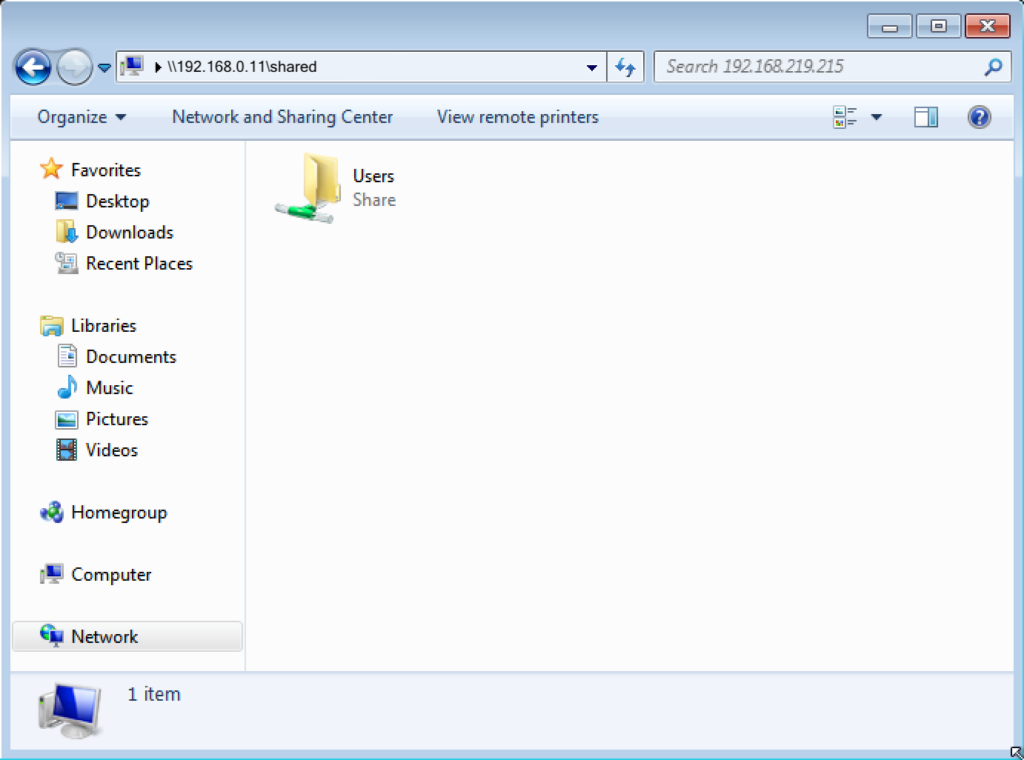
It is also possible to access shared resources through the Windows command line. The command used to connect to a shared resource is net use. For example, to connect to a shared resource called “shared” on a server called “server”, the command would be:
net use x: \\server\shared /user:user_name passwordThis command maps the X: drive letter to the “shared” shared resource on the “server” server. The /user parameter specifies the user credentials that have permission to access the shared resource.
Linux and SMB
On Linux, the command used to mount an SMB shared resource is mount. Before mounting a shared resource, make sure that the cifs-utils package is installed on your system. The command to install this package on Ubuntu and other Debian-based distributions is:
sudo apt-get install cifs-utilsThe command used to mount a shared resource is:
sudo mount -t cifs //server/shared /mnt/mount_point -o username=user_name,password=passwordThis command mounts the “shared” shared resource on the “server” server at the /mnt/mount_point mount point. The -o parameter specifies the user credentials that have permission to access the shared resource.
It is also possible to access shared resources through the Linux command line using the smbclient command. For example, to connect to a shared resource called “shared” on a server called “server”, the command would be:
smbclient //server/shared -U user_nameThis command requests the password for the specified user and displays an smb:> prompt. From this prompt, you can run commands to interact with the shared resource, such as ls to list its contents.
MacOS and SMB
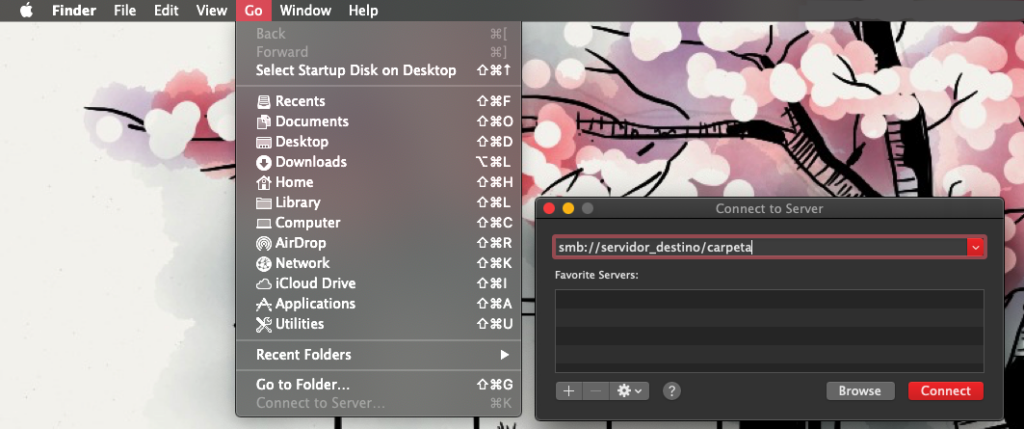
On Mac, access to SMB shared resources is performed through Finder. To access a shared resource, open Finder and select Go > Connect to Server from the menu bar. Enter the shared resource address using the format smb://server/shared and click Connect. If prompted, enter the user credentials that have permission to access the resource.
As with Windows and Linux, it is also possible to access shared resources through the command line on Mac. The command used to mount an SMB shared resource is mount_smbfs. For example, to mount a shared resource called “shared” on a server called “server”, the command would be:
sudo mount_smbfs //user_name:password@server/shared /mnt/mount_pointThis command mounts the “shared” shared resource on the “server” server. The username and password are specified in the shared resource URL.
Conclusion
In summary, SMB shared resources can be accessed from both a graphical environment and the command line on Windows, Linux, and Mac. On Windows, File Explorer and the net use command are the most common options. On Linux, the mount and smbclient commands are used for the same purpose, while on Mac, Finder and the mount_smbfs command are used to mount shared resources. In all cases, the appropriate user credentials must be provided to access shared resources.